Give your story a visual starting point
Start with your book title and genre. Add the author name and a short story summary to give the cover a subject, setting and mood. BookCoverDesign.ai helps you explore cover concepts and develop the idea you want to keep.
Choose from six visual directions, then compare the results for a clear focal point and room for readable text. Continue with your selected concept in the same editor to adjust text, imagery and background before downloading.
A coastal story
The lighthouse gives the eye a destination; the figure makes the landscape feel personal. A low horizon leaves the sky open for a title.
Open the composer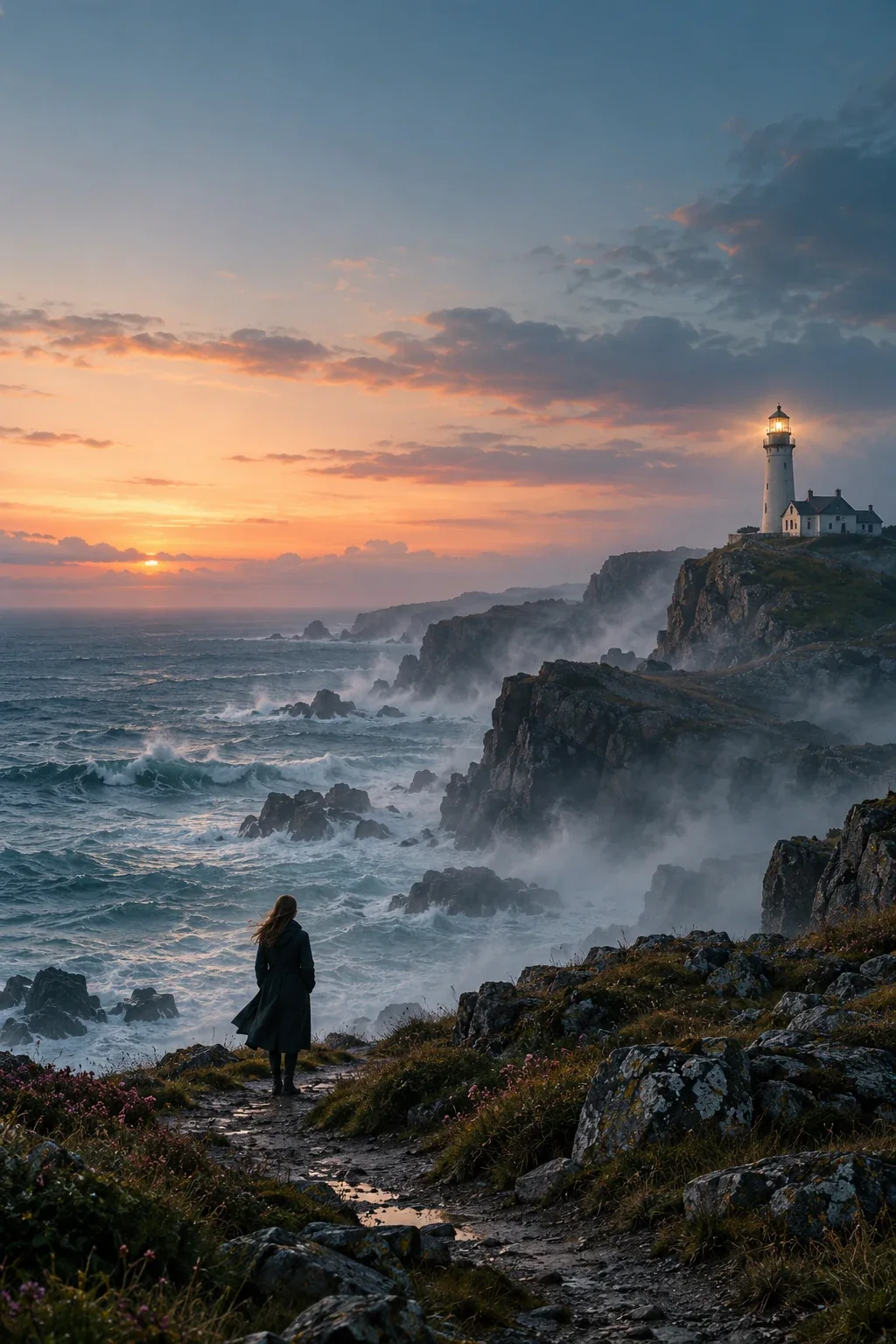
A quiet mystery
One small figure and a red beacon create tension without crowding the page. The pale mist leaves generous space for a restrained title.
Open the composer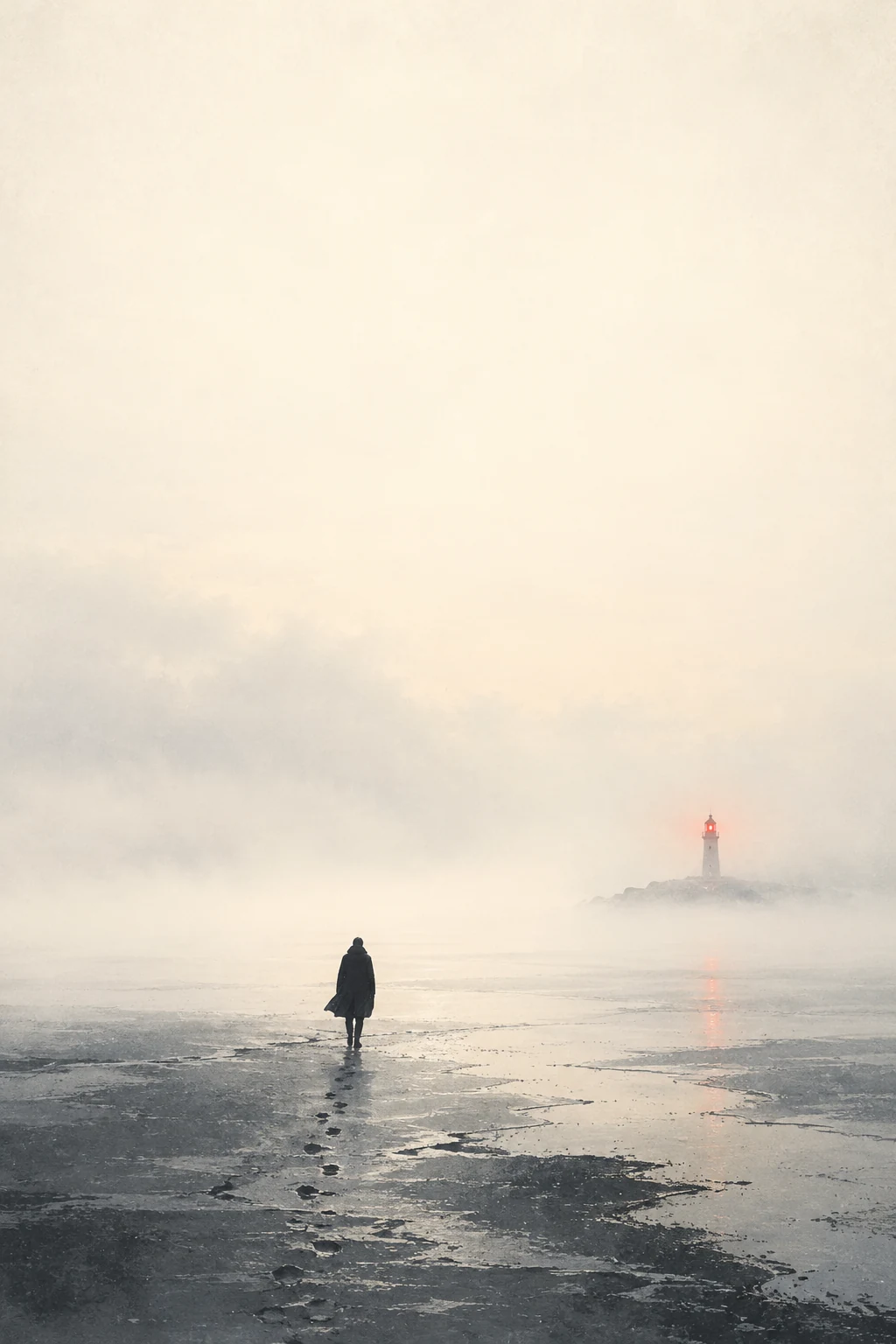
A city thriller
A cropped silhouette, angular shadows and a layered street map suggest a city with something to hide. Cream, black and burgundy keep the focal point clear.
Open the composer
A symbolic fantasy
A single key introduces a question; the tower beyond the portal suggests a world to discover. Layered paper and stone add depth around the central symbol.
Open the composer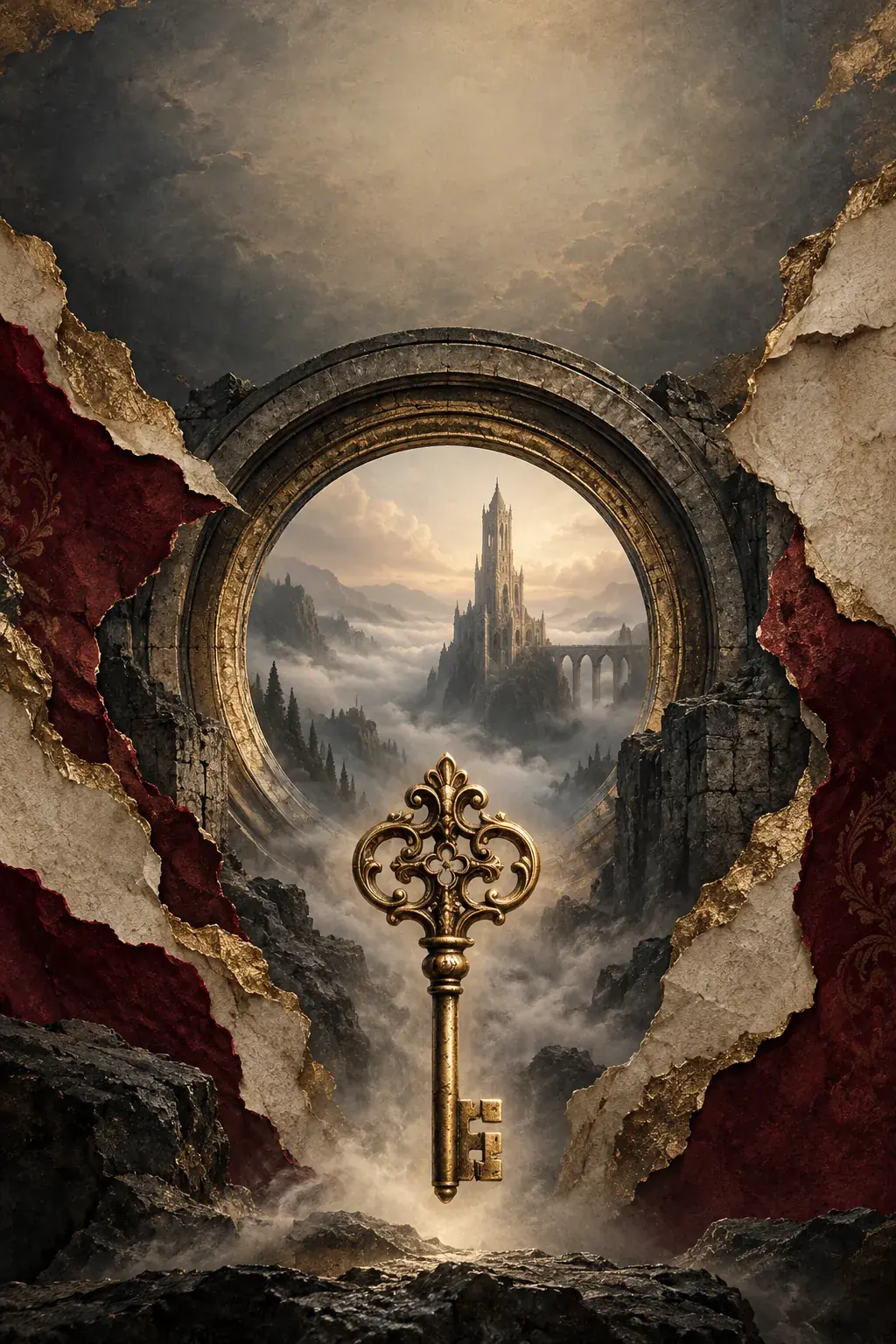
Six ways to interpret the same story
Choose the visual treatment separately from the book’s genre.
Minimalist
Give one subject room to stand out. Use open space and a restrained palette when a quiet image can carry the story.
Typography
Let the title lead the composition. Compare letter size, spacing and placement, then refine the wording and hierarchy in the editor.
Illustration
Introduce a character, place or meaningful object through drawn imagery. Use the brief to guide the scene and its mood.
Photo realism
Explore believable settings, light and detail. Describe the location and atmosphere when a scene is central to the book.
Abstract
Express a theme through shape, color and symbolism. Consider it when a literal scene would reveal too much or miss the feeling.
Vintage
Explore classic type, ornament and print-inspired texture. Describe a period or mood to give the treatment a clear purpose.
How to use the AI book cover generator
Begin with your book details, then develop the concept you want to keep.
From book brief to selected cover
- 01
Describe the book
Enter the book title and choose a genre. Add the author name if you want it on the cover. In the summary, identify the setting, central subject and feeling readers should sense.
- 02
Choose a direction
Select Minimalist, Typography, Illustration, Photo realism, Abstract or Vintage. Review the output settings. Use Prompt (optional) for a particular scene, object, color or detail to avoid.
- 03
Generate and compare
Select Generate Covers and sign in when prompted. Compare the concepts for mood, visual focus and title space. Choose the one that best introduces your story.
- 04
Edit and review
Open Edit cover from the chosen result. Adjust text, imagery and background in the same workspace. Preview the composition and check spelling and readability before downloading.
Give your brief one clear visual focus
A useful summary explains what the story is about. For example: a keeper returns to an isolated lighthouse after receiving a letter from someone thought lost at sea. That gives the cover a setting, a subject and a sense of uncertainty without describing every scene.
Use the optional prompt for art direction: a lighthouse at dusk, rough weather, a small figure and room for the title. Keep the story brief consistent when comparing visual directions so you can judge what the treatment changes.
- Find a first visual idea
Start with the book details when you know the story but have not settled on a cover. Look for an image that communicates its central feeling.
- Compare treatments for one story
Explore the same brief in another direction. Judge the focal point, atmosphere and title space together rather than choosing by color alone.
- Develop the concept you keep
Continue from a selected result in the editor. Review text placement, image balance and background as one composition.
Book cover generator questions
What information do I need to generate a book cover?
Enter your book title and choose a genre. The author name is optional. A short story summary helps describe the setting, central subject and mood you want the cover to convey.
Do I need to write a detailed prompt?
No. You can start with the book details and a generation direction. Use the collapsed Prompt (optional) field when you want to specify a scene, object, color or element to avoid.
How is a genre different from a generation direction?
Genre describes the book, such as fantasy, thriller or memoir. A generation direction describes its visual treatment: Minimalist, Typography, Illustration, Photo realism, Abstract or Vintage. The same story can be explored in different treatments.
Can I edit the cover after generating it?
Select a result and open Edit cover to continue in the same workspace. Adjust title and author text, images and background, then preview the composition. Review the spelling and text placement before downloading.
Can I use the generator on my phone?
You can generate, review, preview and download covers on mobile. Use desktop for detailed canvas, layer and text editing.